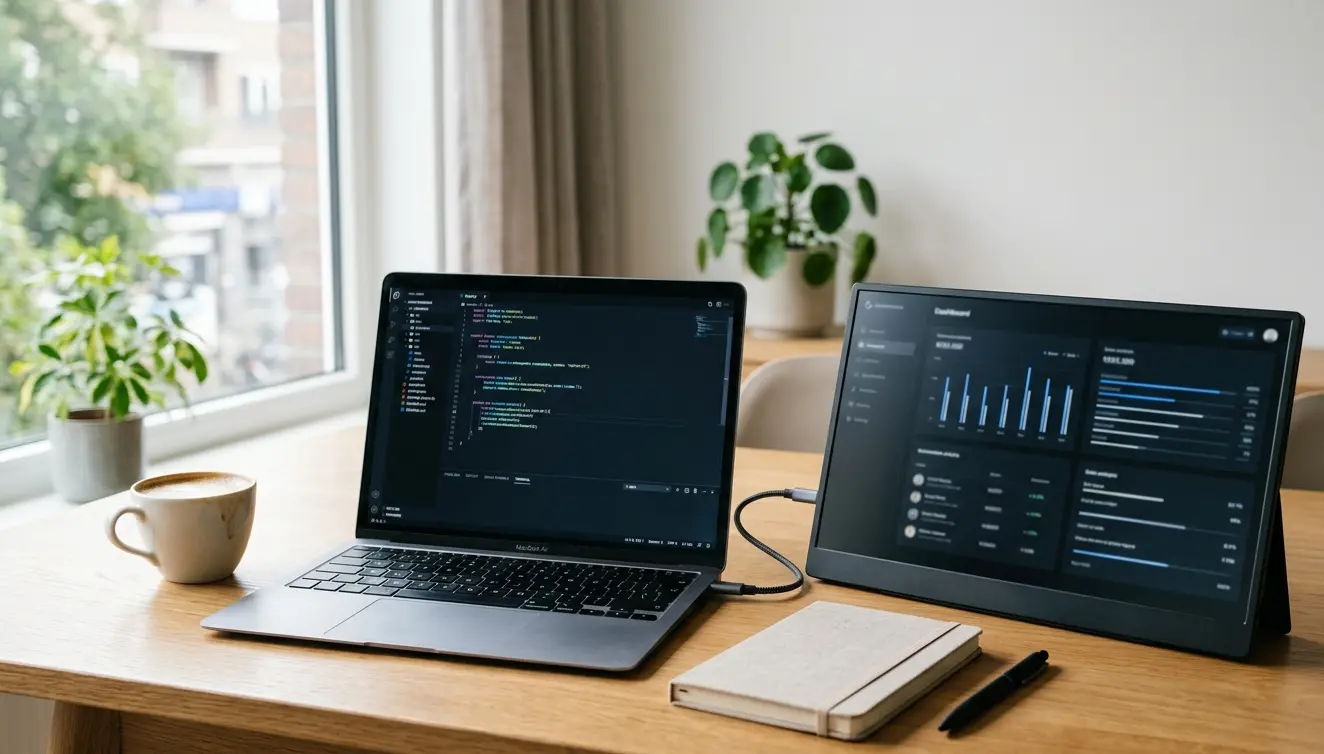
Portable Monitor Guide: What to Look for Before You Buy
Working on a single screen can feel limiting fast. You switch between tabs, drag windows around, and lose track of what you were doing. A portable monitor solves this by giving you extra screen space wherever you go.
What Is a Portable Monitor?
A portable monitor is a thin, lightweight display that connects to a laptop, tablet, phone, or gaming console. Most models weigh under three pounds and run on a single USB-C cable for power and video. Screen sizes usually range from 10 to 17 inches, so they fit easily into a bag.
Unlike a desktop monitor, this type of display rarely needs a separate power brick or stand. Its built-in cover often folds into a stand, so setup takes less than a minute. That makes it a practical option for anyone who needs more screen space away from a fixed desk.
Why You Might Need a Second Screen
A second display lets you keep one task open while checking reference material on another. Research on workplace productivity shows that extra screen space cuts down the time spent switching between windows. Over a full workday, that time adds up.
Here are common situations where this kind of display helps:
- Working from a coffee shop, hotel room, or shared workspace
- Giving a presentation without relying on a venue’s screen
- Checking photos or footage on a larger view while shooting
- Playing games on a handheld console with a bigger picture
- Turning a phone or tablet into a temporary computer setup
If any of these match your routine, a second screen solves a real problem instead of becoming another gadget you rarely use.
What to Look for in a Portable Monitor
Not every model suits every task. The right choice depends on your display needs, how you plan to connect it, and how much weight you want to carry.
Display Type and Resolution
Most models use an IPS panel, an OLED panel, or a TN or VA panel.
IPS panels show accurate colors and wide viewing angles. They handle everyday tasks like writing, browsing, and photo editing well.
OLED panels produce deeper blacks and stronger contrast. These suit video, gaming, and creative work, though they cost more.
TN and VA panels show up in budget models. They respond faster but offer weaker color accuracy and narrower viewing angles.
For resolution, 1080p is standard and works well for most tasks. If you edit photos or videos often, look for 1440p or 4K for sharper detail.
Connectivity Options
USB-C is the port to check first. A single USB-C cable can carry both video and power, which keeps your setup simple.
HDMI or mini-HDMI ports work as a useful backup, especially for older laptops or gaming consoles without USB-C video output.
If you plan to connect a phone or tablet, confirm it supports DisplayPort Alt Mode over USB-C. Without this feature, the device cannot send a video signal through the cable.
Power and Battery
Most external displays draw power directly from the connected device through USB-C. This keeps the unit light, but it can drain your laptop’s battery faster than usual.
Some models include a built-in battery, so they run without pulling power from your laptop. These models tend to be heavier and pricier, and the battery still needs its own charging.
Before buying, check that your laptop or tablet’s USB-C port can supply enough power. Lower-power ports may struggle to run a larger or brighter screen properly.
Size, Weight, and Build
A 13 to 15.6-inch screen matches most laptop sizes and balances visibility with portability.
Smaller screens, around 10 to 12 inches, work well for travel or pairing with handheld gaming devices.
Larger screens, 17 inches and up, suit users who want a desk replacement rather than a travel companion.
Weight matters if you carry the display daily. Models under two pounds fit into a bag without adding much bulk.
Look for a built-in stand or cover, since this saves you from buying extra accessories. A metal frame adds durability if you travel often.
Best Portable Monitor for Your Needs
Different users have different priorities. Here is how to match an external display to your situation.
For Remote Work and Travel
If you work from different locations, prioritize a lightweight model with a single USB-C connection. A 14 to 15.6-inch IPS screen at 1080p covers most office tasks. A built-in stand and protective cover make daily setup and packing faster.
For Gaming
Gamers should look for a higher refresh rate, ideally 90Hz or above, to reduce motion blur. A smaller 13 to 16-inch screen pairs well with handheld consoles. HDMI support helps when connecting to consoles that lack USB-C video output.
For Photo and Video Editing
Creative work benefits from a higher resolution panel, such as 1440p or 4K, with strong color accuracy. An OLED or high-quality IPS panel shows truer colors for editing. A larger 15.6 to 17-inch screen gives more room for timelines and tools.
For Students and Casual Use
If you mainly need extra space for browsing, note-taking, or streaming, a budget 1080p IPS model around 14 inches works fine. Focus on a built-in stand and decent brightness for indoor use.
Portable Monitor Comparison at a Glance
The table below summarizes common options by typical use case.
| Monitor Type | Display | Power Source | Best For |
|---|---|---|---|
| Budget (10 to 13 inch) | 1080p IPS or TN | USB-C from connected device | Travel, casual second screen |
| Standard (14 to 16 inch) | 1080p or 1440p IPS | USB-C with power delivery | Remote work, daily productivity |
| Creative (15.6 to 17 inch) | 1440p or 4K, OLED or IPS | USB-C with power delivery, sometimes built-in battery | Photo and video editing, design work |
| Gaming | 1080p or 1440p, high refresh rate | USB-C or HDMI | Handheld consoles, on-the-go gaming |
Use this table as a starting point, then check the connectivity and power needs of your own devices before buying.
Common Problems and How to Fix Them
Even a well-reviewed external display can run into setup issues. Most problems have simple fixes.
The screen shows no signal or is not detected. Check that your cable supports video, not just charging. Some USB-C cables only handle power. Try a different port on your laptop, since not all USB-C ports support video output.
The screen flickers or dims unexpectedly. This usually points to a power supply issue. Connect the display to a higher wattage power source, or use the cable that came with it instead of a third party one.
Touch input does not respond. Confirm your operating system supports touch input over USB-C. Some setups need an extra cable connected alongside the video cable for touch to work.
The display drains your laptop’s battery quickly. Lower the screen’s brightness, or connect it to its own power source if it supports one. This reduces the load on your laptop’s battery.
The orientation or resolution looks wrong. Open your device’s display settings and adjust the orientation and resolution manually. Most operating systems detect the screen automatically, but manual adjustment fixes most mismatches.
Frequently Asked Questions
Do portable monitors need a battery?
No, most portable monitors do not have a built-in battery. They draw power from the connected laptop, tablet, or phone through USB-C. Some premium models include a battery for standalone use, but this adds weight and cost.
Can I use my phone as a second screen?
Some phones work as a second display through screen sharing apps, but this differs from using a dedicated external monitor. A portable monitor connects to your phone as an external display if the phone supports DisplayPort Alt Mode over USB-C.
Is OLED better than IPS for this type of display?
OLED offers deeper blacks and stronger contrast, which suits video and gaming. IPS offers accurate colors at a lower cost, which works well for everyday tasks. The better choice depends on your main use and budget.
What size should I buy?
A 14 to 15.6-inch screen suits most laptop users and balances portability with visibility. Choose a smaller screen for travel or gaming consoles, and a larger one if you plan to use it as a desk replacement.
Can I connect it to a gaming console?
Yes, most models support HDMI, which works with consoles such as the Nintendo Switch, PlayStation, and Xbox. Check the monitor’s ports and the console’s video output before buying.
Does it drain my laptop’s battery?
Yes, if the display draws power through USB-C from your laptop, it uses battery faster. Connecting the monitor to its own power source, or lowering its brightness, helps reduce this effect.
Final Thoughts
A portable monitor adds real screen space without tying you to a desk. The right choice depends on your display needs, connection type, and how much weight you want to carry. Match the model to your main use, whether that is work, gaming, or creative projects. With the right setup, an external monitor becomes a simple and reliable tool for getting more done anywhere.