What Is a Lightning Connector? The Complete Guide for 2026
You have probably used one without ever thinking about its name. That small flat plug on your iPhone charger is called the Lightning connector. Apple introduced it in 2012 and for over a decade it powered billions of devices.
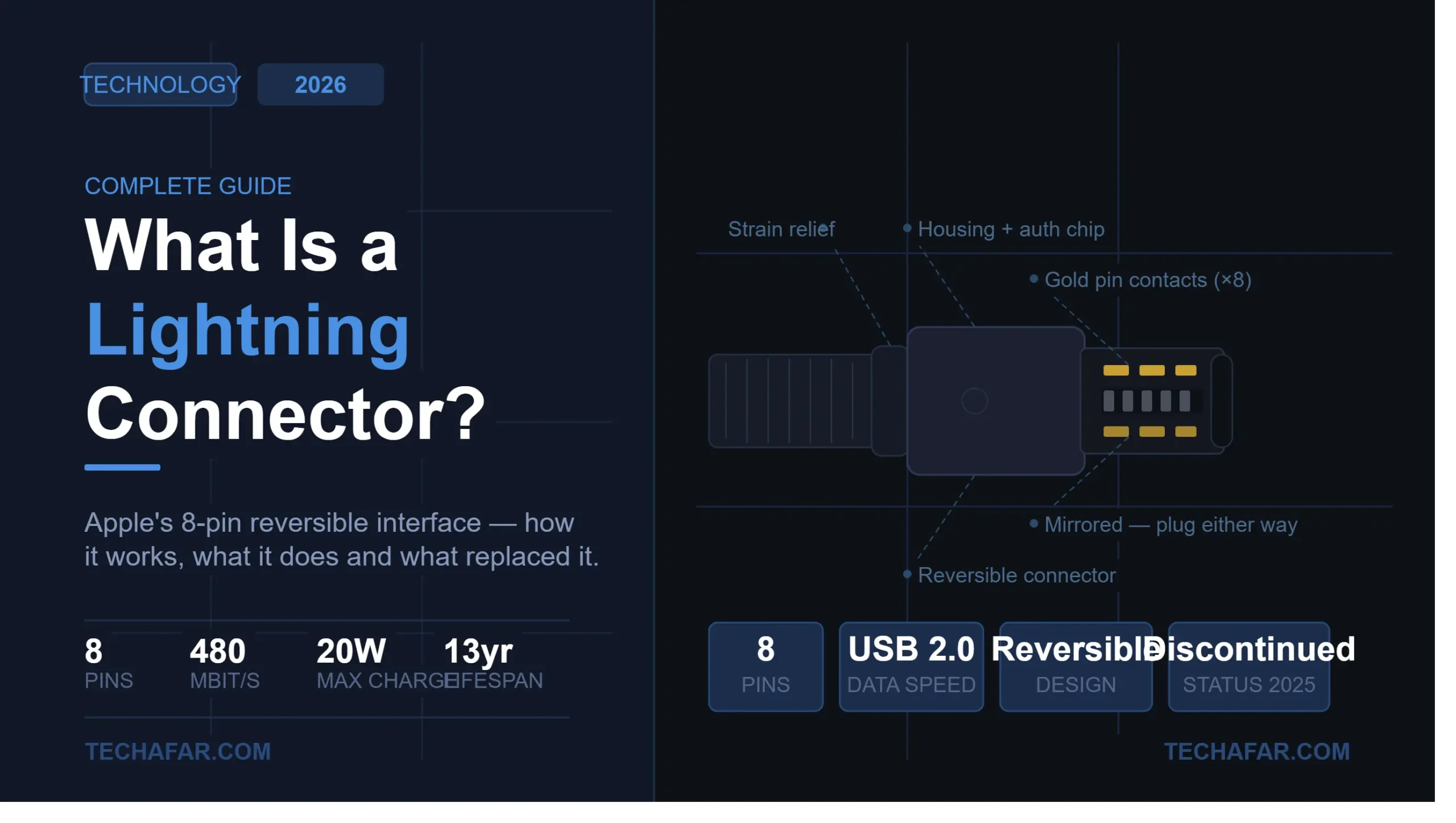
The Lightning connector is a compact 8-pin reversible interface developed by Apple. It handles charging, data transfer and audio output on iPhones, iPads and other Apple accessories. Apple officially discontinued it in February 2025 when the last Lightning device — the iPhone SE 3rd generation — was retired.
Even though it is no longer in production, hundreds of millions of people still use Lightning-powered devices every day. Understanding how it works and how it compares to newer connectors is very relevant for most Apple users in 2026.
What Is the Lightning Connector?
The Lightning connector is a proprietary port created by Apple. It replaced the older 30-pin dock connector that Apple used from 2003 to 2012. The new design was smaller, faster to connect and easier to use.
What made it stand out was its reversible design. You could plug it in from either side which solved a frustration that almost every USB user had experienced. The plug measures approximately 6.7 mm wide and 1.5 mm thick which allowed Apple to build thinner devices.
It uses 8 pins instead of the old 30 but those 8 pins are smarter. They use adaptive pin assignment meaning the connector detects what function is needed and adjusts how the pins are used. This single connector could charge a device, transfer data or output audio depending on what was connected.
How Does the Lightning Connector Work?
The Lightning connector communicates digitally. Every pin carries digital signals rather than analog ones which gives Apple more flexibility in how the connector behaves.
Here is a simplified breakdown of what each pin group does:
- Power pin VBUS delivers electricity from the charger to the device
- Ground pin GND completes the electrical circuit for safe power delivery
- Data Lane 0 pins Pins 2 and 3 handle data transfer between the device and a computer
- Data Lane 1 pins Pins 6 and 7 support additional data transfer at USB 2.0 speeds
- Identification pins Pins 4 and 8 detect the type of accessory connected and assign the correct function
Because both sides of the plug carry identical contacts, inserting the connector either way produces the same result. A small authentication chip inside the cable also verifies whether the accessory is certified by Apple. This is what triggers the “Accessory Not Supported” message when you use a non-certified cable.
Most Lightning devices transfer data at up to 480 Mbit/s which is the USB 2.0 standard. A small number of older iPad Pro models supported faster USB 3.0 speeds through special adapters reaching up to 5 Gbit/s.
What Can a Lightning Connector Do?
The Lightning connector handles four main functions and switches between them depending on what you plug in.
Charging is the most common use. When connected to a wall adapter, power bank or computer it delivers power to the device. Standard charging runs at 5V and 2.4A which equals about 12 watts. Newer fast-charging setups using a USB-C to Lightning cable with a compatible charger can push up to 20 watts.
Data transfer lets you move photos, videos, music and documents between your iPhone or iPad and a computer. The transfer speed caps at 480 Mbit/s for most devices.
Audio output became important after Apple removed the headphone jack from the iPhone 7 in 2016. The Lightning port took over audio duties. A Lightning to 3.5mm adapter carries digital audio and converts it to analog sound for wired headphones.
Accessory connectivity allows Lightning devices to work with a wide range of peripherals. Camera adapters, keyboard docks, HDMI output adapters and CarPlay systems all run through this single port.
Which Devices Use a Lightning Connector?
Apple used the Lightning connector across its product lineup for 13 years. The list of compatible devices is long.
iPhones with Lightning:
- iPhone 5 through iPhone 14 including the Pro and Plus models
- iPhone SE (1st, 2nd and 3rd generation)
iPads with Lightning:
- iPad 4th through 9th generation
- iPad mini 1st through 5th generation
- iPad Air 1st and 2nd generation
Other Apple accessories with Lightning:
- AirPods 1st and 2nd generation charging cases
- AirPods Pro 1st generation
- Apple Pencil 1st generation
- Magic Keyboard, Magic Trackpad and Magic Mouse (pre-2024 versions)
- Siri Remote 1st generation
Important note: Apple began moving away from Lightning in 2018 with the iPad Pro. The iPhone 15 series was the first iPhone lineup to use USB-C released in September 2023. By February 2025 Apple retired the last Lightning device and replaced it with the iPhone 16e which uses USB-C.
Lightning vs USB-C vs Micro-USB: The Full Comparison
This is where most people get confused. Here is a clear side-by-side look at all three connectors.
| Feature | Lightning | USB-C | Micro-USB |
|---|---|---|---|
| Reversible | Yes | Yes | No |
| Pin count | 8 | 24 | 5 |
| Max data speed | 480 Mbit/s | Up to 40 Gbit/s | 480 Mbit/s |
| Max charging power | ~20W | Up to 240W | ~10W |
| Ecosystem | Apple-only | Universal | Universal |
| Insertion cycles | ~5,000 | 10,000+ | ~5,000 |
| Status in 2026 | Discontinued | Active and growing | Fading out |
Lightning vs USB-C is the comparison people search for most. USB-C wins on almost every technical metric. It transfers data faster, charges more powerfully and works with nearly every modern device. However, Lightning was far ahead of Micro-USB in almost every way and served Apple users reliably for over a decade.
Lightning vs Micro-USB is simpler. Lightning was always the better design. Its reversible plug and digital interface made it easier to use and more versatile than Micro-USB which had a fragile one-way connector.
How to Identify a Lightning Connector
If you are not sure what type of cable or port you have, look at the connector shape.
A Lightning connector is flat and rectangular with a small metal blade at the tip. It has a smooth solid surface with no hole in the center. It is narrow — about the size of a fingernail — and fits only into Apple devices with a matching port.
A USB-C connector is also reversible but has a slightly wider oval shape with rounded edges. It has a hollow rectangular opening in the center of the plug.
A Micro-USB connector is trapezoidal — wider at the top and narrower at the bottom. It only inserts one way.
If you look at your iPhone or iPad port, a Lightning port is a narrow oval-shaped slot. A USB-C port looks similar but slightly wider and more rounded at the corners.
Types of Lightning Cables
Not every Lightning cable is the same. There are several variations and choosing the right one matters.
USB-A to Lightning is the classic cable. One end has a standard USB-A plug (the rectangular one that fits into most chargers and computers) and the other has the Lightning connector. This was the cable Apple included in iPhone boxes for years.
USB-C to Lightning has a USB-C plug on one end and Lightning on the other. This type supports faster charging when used with a USB-C power adapter. It is now the most recommended option for people charging older iPhones with a modern charger.
Coiled Lightning cable has a spring-like shape that stretches when needed and returns to a compact coil when not in use. It is popular for desk setups because it reduces cable clutter.
Lightning to 3.5mm audio cable connects iPhones directly to speakers, car stereos or headphones that use a standard audio jack. This is different from the adapter because it is a full cable rather than a short dongle.
What Is MFi Certification and Why Does It Matter?
MFi stands for Made for iPhone/iPad/iPod. It is Apple’s official certification program for third-party accessories.
When a cable carries MFi certification it means the manufacturer has met Apple’s technical and safety standards. The cable includes the required authentication chip that the iPhone or iPad recognizes. Without this chip the device may show an “Accessory Not Supported” or “This Cable May Not Be Supported” warning.
Non-certified cables can sometimes charge the device anyway but they may charge more slowly or stop working after an iOS update. In rare cases uncertified cables have caused overheating.
When buying a Lightning cable look for “MFi certified” on the packaging. Reputable third-party brands sell MFi cables at fair prices and they perform just as reliably as Apple’s own cables.
Common Lightning Connector Problems and Solutions
Lightning connectors are reliable but they do have well-known failure points. Here are the most common issues and how to fix them.
The Cable Keeps Breaking or Fraying
The most reported Lightning cable problem is fraying near the connector end. This happens because the junction between the rigid connector housing and the flexible cable wire creates a stress point. Every time the cable bends at that spot the internal wires weaken.
Solution: Buy a cable with braided nylon or reinforced strain relief at the connector end. Avoid bending the cable sharply at the plug. Do not pull the cable out by grabbing the wire. Always hold the connector itself when unplugging.
The iPhone Shows “This Accessory May Not Be Supported”
This error usually means the cable lacks a valid authentication chip which is required for Apple devices to recognize the accessory as safe.
Solution: Replace the cable with an MFi-certified one. If you are already using a certified cable try cleaning the Lightning port (see below) or restarting the device.
The Device Is Not Charging
Before assuming the cable is broken check a few things first. Charging issues often come from a blocked port rather than a damaged cable.
Solution: Shine a light into the Lightning port and look for lint, dust or debris. A surprising amount of pocket lint can pack into the port over time and block the connection. Use a wooden toothpick or a soft-bristle brush to gently clear it out. Never use metal objects inside the port. If the port is clean and the device still does not charge try a different cable and a different charger.
Data Transfer Is Slow or the Computer Does Not Recognize the Device
Slow sync speeds or an unrecognized device usually point to a charging-only cable, a damaged data pin or a USB port issue on the computer.
Solution: Make sure you are using a cable that supports both charging and data transfer. Charging-only cables exist and will not work for syncing. Try a different USB port on your computer and try a different cable. On iPhone make sure to tap “Trust” when the prompt appears after connecting to a new computer.
The Lightning Port Feels Loose
A loose port is most often caused by debris packing inside the socket over months of use. The connector cannot seat properly which creates a wobbly connection.
Solution: Clean the port carefully with a wooden toothpick. Work gently and avoid forcing anything. If the port is physically damaged a repair shop can replace it.
Is the Lightning Connector Dead in 2026?
Yes, officially. Apple discontinued Lightning with the retirement of the iPhone SE 3rd generation in February 2025 and its replacement with the iPhone 16e which uses USB-C.
The shift was driven by two forces. First, Apple’s own push toward a universal charging experience across all its devices. Second, the European Union’s Common Charger Directive which required all small electronics sold after December 28, 2024 to use USB-C. Apple began complying with iPhone 15 in 2023 and completed the full transition by early 2025.
However, “officially discontinued” does not mean irrelevant. Hundreds of millions of iPhones, iPads and AirPods with Lightning ports are still in active daily use. Lightning cables and chargers will remain widely available for years. If you own an older Apple device nothing about your setup needs to change today.
The practical takeaway is straightforward. If you are upgrading to a new iPhone now you are getting USB-C. If you are still on an iPhone 14 or older, Lightning will keep working just fine.
Should You Switch to USB-C Now?
If you are using an iPhone 14 or older you do not need to rush. Your Lightning accessories still work, cables are still sold everywhere and your device will not stop charging next month.
However, if you are buying a new iPhone in 2026 it will use USB-C. You will need USB-C cables and chargers for the new device. The good news is that USB-C cables are often less expensive than Lightning cables because USB-C is an open standard with no licensing fees for manufacturers.
One practical step you can take now is to buy a USB-C to Lightning cable. This lets you charge your older iPhone from the same USB-C charger you might use for a newer MacBook, iPad Pro or Android phone. You consolidate your cable setup and stay ready for when you do upgrade.
Frequently Asked Questions
What is the difference between a Lightning connector and USB-C? Lightning is Apple’s proprietary 8-pin connector while USB-C is a universal 24-pin standard. USB-C supports faster data speeds, higher charging power and works with nearly every modern device. Lightning only works with older Apple products.
Can I use a USB-C charger with an older iPhone? Yes, if you use a USB-C to Lightning cable. Plug the USB-C end into your charger and the Lightning end into your iPhone. This also supports faster charging compared to the older USB-A to Lightning cable.
What does MFi certification mean on a Lightning cable? MFi stands for Made for iPhone/iPad/iPod. It means the cable meets Apple’s technical standards and includes the required authentication chip. Certified cables avoid the “Accessory Not Supported” warning and are safer to use.
Why does my Lightning cable keep breaking? The most common reason is bending stress at the connector joint. The cable’s thin wires break over time from repeated bending near the rigid plug. Choosing a braided cable with proper strain relief significantly extends cable life.
Is a Lightning port the same as a charging port? On older iPhones and iPads yes. The Lightning port serves as both the charging port and the data transfer port. It also handled audio output on iPhones after the headphone jack was removed.
How do I clean my Lightning port? Turn off the device first. Use a wooden toothpick and gently remove any lint or debris from inside the port. Work slowly and avoid scratching the contacts. Never use water, compressed air at close range or metal objects.
Will Apple bring back Lightning? No. Apple has fully committed to USB-C across its entire product lineup. Lightning will not return.
What was before the Lightning connector? Apple used a 30-pin dock connector from 2003 to 2012 on iPhones, iPads and iPods. Lightning replaced it in September 2012 with the launch of the iPhone 5.
Conclusion
The Lightning connector changed how Apple devices charged and connected for 13 years. It brought a reversible compact design at a time when most connectors were clumsy and fragile. While officially discontinued in favor of USB-C, millions of Lightning devices remain in everyday use in 2026. Knowing what it does, how to maintain it and when to transition to USB-C helps you get the most from your Apple devices for as long as you use them.